How to Find the MS Teams Notification Webhook URL
|
This article relates to the following pro-Forms modules: |
This article describes the steps needed to generate a Webhook URL in MS Teams. This URL can then be added to the 'MS Teams Notification' trigger in pro-Forms. This will then send notifications to users subscribed to a channel when a form is submitted.
Steps
- Open Microsoft Teams
- Navigate to your Team → Channel
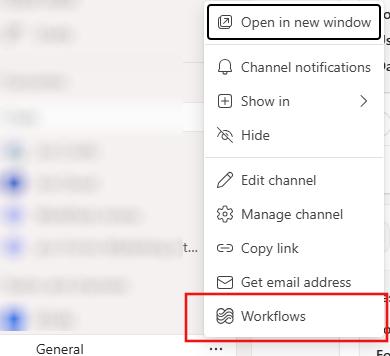
- Click ⋯ next to the channel name and then click Workflows
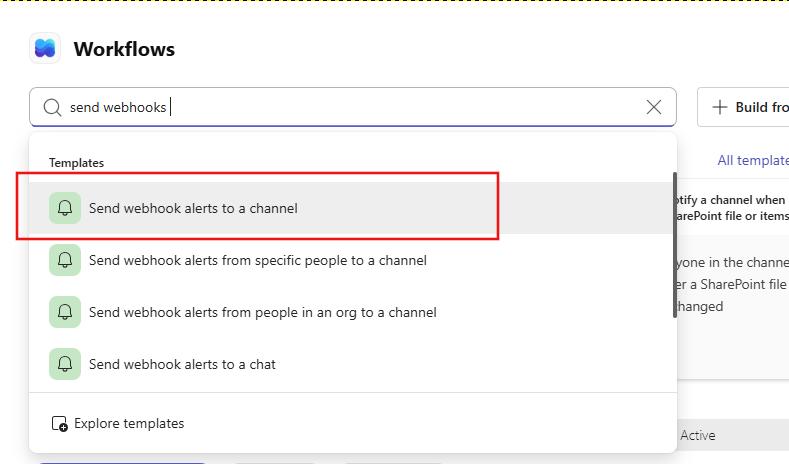
4. Choose “Send webhook alerts to a channel”
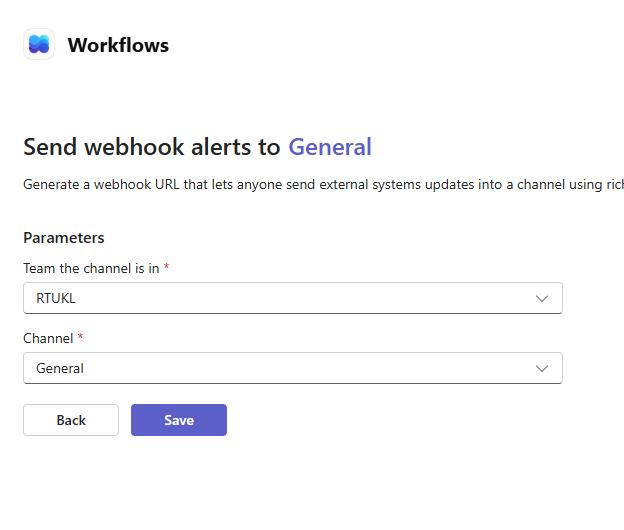
5. Select: Team & Channel and click 'Save'
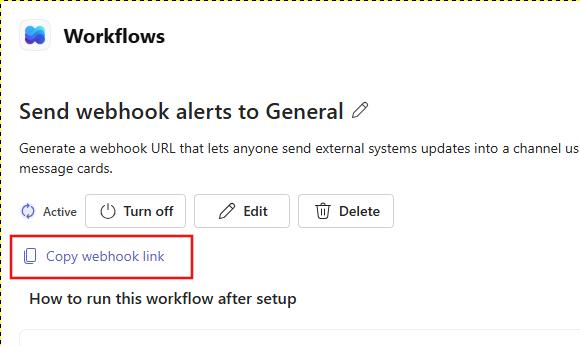
6. Click 'Copy webhook link'
Once you have the Webhook URL, add it to the 'MS Teams Notification' trigger on your form — see How to Add an Email Trigger to a Form for how Triggers work in pro-Forms®.