How to Set Field Visibility Rules (Basic Editor)
Field Visibility
- To set one or more conditions for making a field visible click on the field to edit it.
- Click on the 'Advanced' tab in the pop up window.

- Click on the cog icon on the right hand side of the Visibility box.
- Use the default option of the Basic Editor.
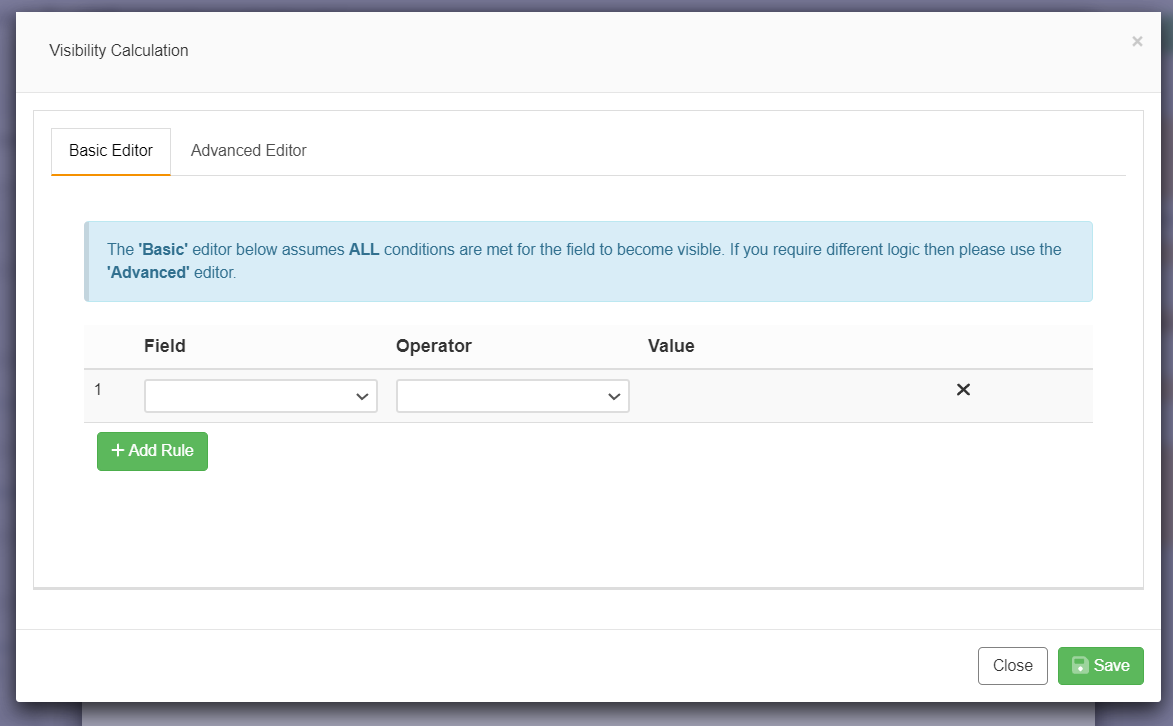
- From the 'Field' dropdown select another form field on which a condition will be set for making the current field being edited visible or not.
- Select an operator from the next dropdown e.g. equal to, or greater than and then in the 'Value' field add a value for the operator.
e.g. Fluid temperature = 50
- Click Save in the bottom right to add the visibility rule to the currently edited field.
- More than one visibility condition can be added against a field BUT ALL conditions must be met for the field to become visible.
Article ID: 8
Created: August 25, 2022
Last Updated: August 25, 2022
Author: Administrator
Online URL: https://www.pro-forms.co.uk/kb/article.php?id=8