|
This article relates to the following pro-Forms modules: |
Not every answer on a form submission carries the same weight. A missing fire extinguisher check or a failed safety inspection needs to stand out from the rest of the submission — not get buried among dozens of routine answers marked "Pass" or "N/A." That's what Flagged Responses are for: when a specific answer indicates a compliance issue, it's automatically marked so it can't be missed.
When you open a submission, every flagged response is pulled together into a single list, alongside any comments the person filling in the form added at the time — giving you the full context of what went wrong and why, without having to scroll through the entire form to piece it together.
Because these items are already grouped and commented, that list doubles as a ready-made Action Plan. Rather than re-reading a submission end-to-end to figure out what needs following up, you can go straight from a flagged response to the next step — whether that's raising a quote, scheduling a job, or simply tracking the issue through to resolution.
In this article, we'll cover how Flagged Responses are set up on a Choice List, how they appear on a submission
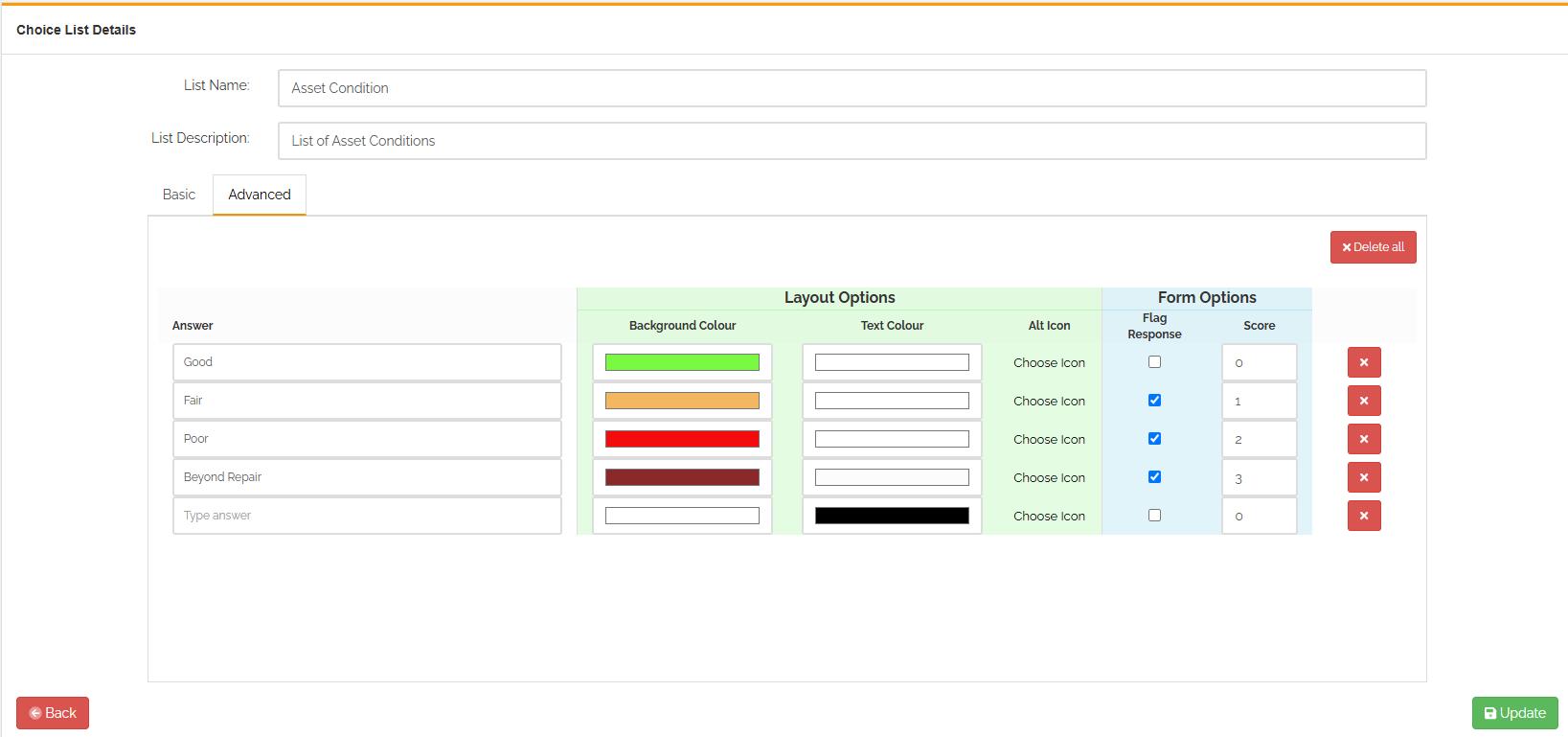
When Editing an existing Choice List, select the 'Advanced' tab :
Next to each answer the is a blue section for 'Form Options'. Next to each relevant answer, tick the checkbox to indicate if that answer should be "Flagged". You can also assign a score to the flagged item. When viewing all flagged items against a form submission , this score is used to order the priority of the items. The higher the score, the higher the priority. Flagged items will be shown higher score to lower scores.
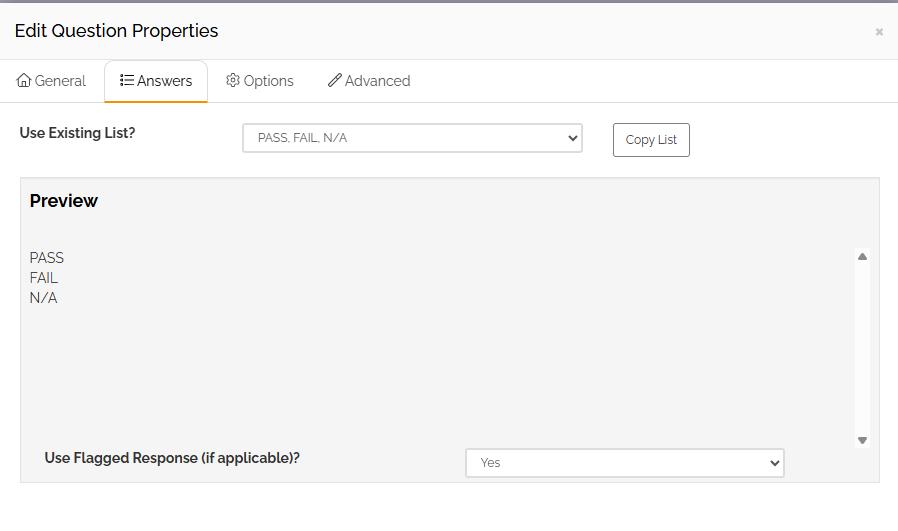
Form questions do not automatically use a flagged response. You will have to manually configure which questions you want to be flagged. To do this edit the relevant question against your form and select the 'Answers' tab. if you are using an existing Choice List, you will see an option called 'Use Flagged Response (if applicable). Selecting 'Yes' to this will flagged any necessary responses to this question.#
When you view a form submission, a new section will be visible if there are Flagged Responses:
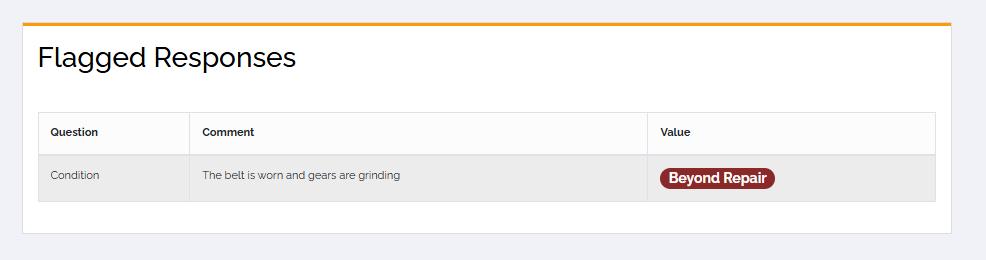
This will list all of the flagged response order by the score in descending order.
Article ID: 115
Created: September 18, 2026
Last Updated: September 24, 2026
Author: Administrator
Online URL: https://www.pro-forms.co.uk/kb/article.php?id=115