Editing an existing Choice List
|
This article relates to the following pro-Forms modules: |
To edit an existing Choice List, follow the steps below:
- Expand the Forms menu on the left
- Click 'Choice Lists'
- Click the 'Edit'' button next to the relevant Choice List.
A screen similar to this will load:
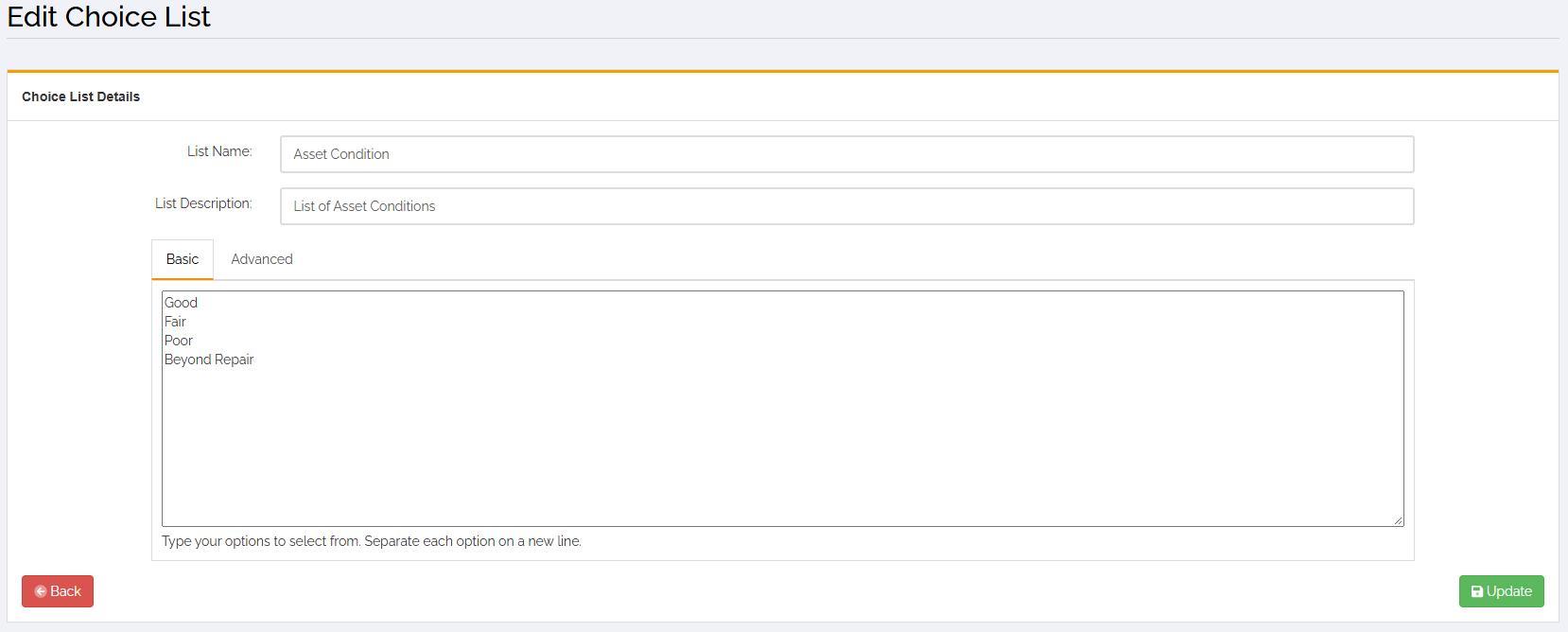
Update your list to remove or add new items and click the 'Update' button.
If you need to add colours to your answers, click the 'Advanced' tab. This screen will then load:
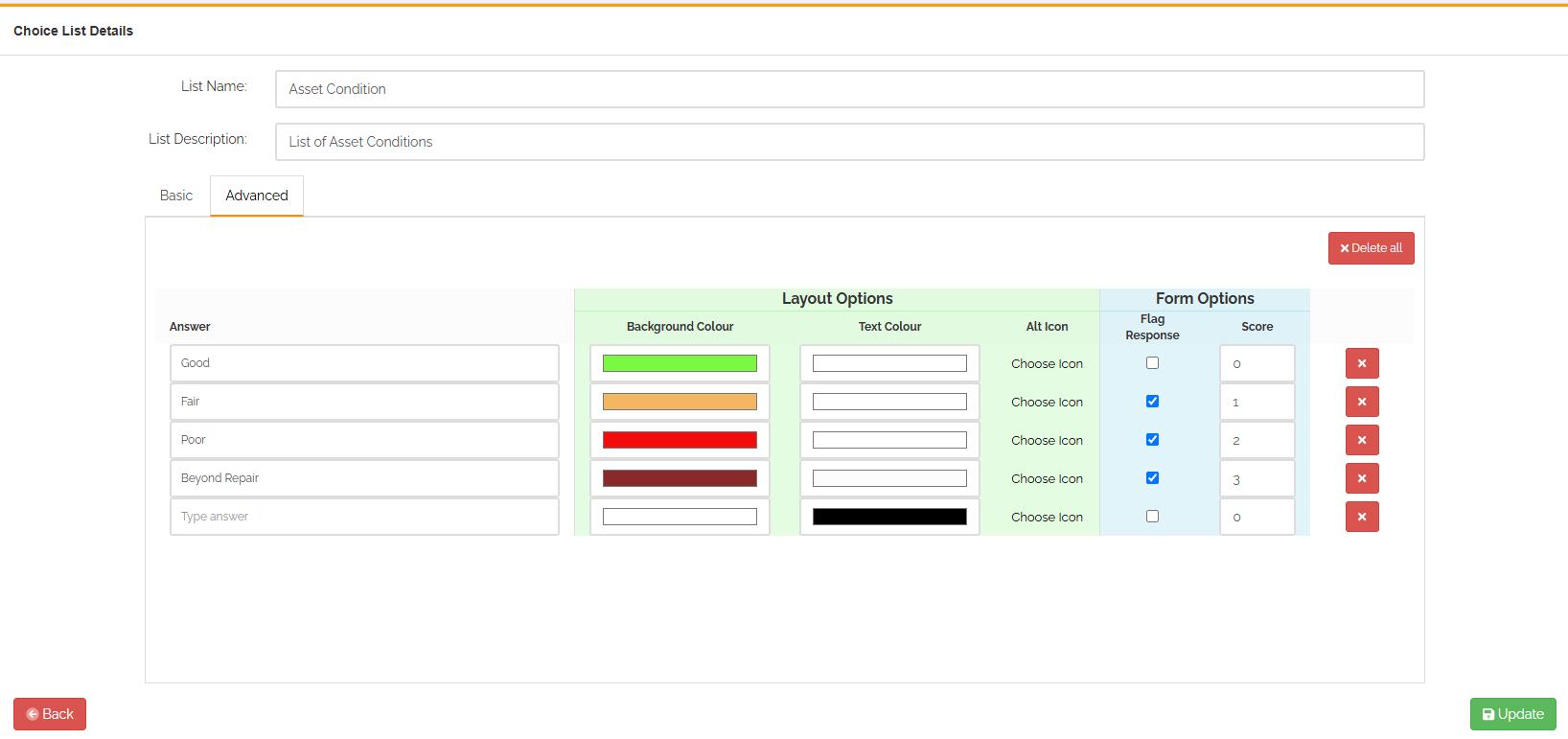
Next to each answer are columns for background colour, text colour and alternative icon. If these options are altered then any Word layouts created will use the styles assigned rather than it just being black text on a white background. Using this will enable viewers of your report to easily identify any issues that need addressing.#
Once you have configured the options, click the 'Update' button.